
PRIVATE IMAGE TOOLS
HEIC to JPG.
Make your iPhone photos easier to share.
Convert HEIC and HEIF to JPG in your browser. No photo uploads or account needed.
Convert your photos
On your deviceCheck your settings, then convert. Your originals stay unchanged.
Drop your photos here
or choose them from your files
Up to 10 photos · 20 MB each · 100 MB total
HEIC / HEIF / JPG / PNG / WebP · No photo uploads.
Processing your photo
Loading the converter…
Keep this tab open. Your photo is being processed on this device.
Your JPG is ready
This file contains multiple images. The primary photo was converted.
The selected photo is already a JPG. We saved a new copy without the original capture metadata.
Converting your photos
The 50 MB result limit was reached. Download completed photos, then start a smaller batch.
Successful photos only. Your originals stay on your device.
This photo couldn’t be converted
Converted with PicConv
What changes when you convert HEIC to JPG?
We saved the same image at JPG quality 90% and 80%, keeping its 1536 × 1024 pixel dimensions.
The photographic image is an AI-generated sample, not a measurement of an iPhone camera photo.
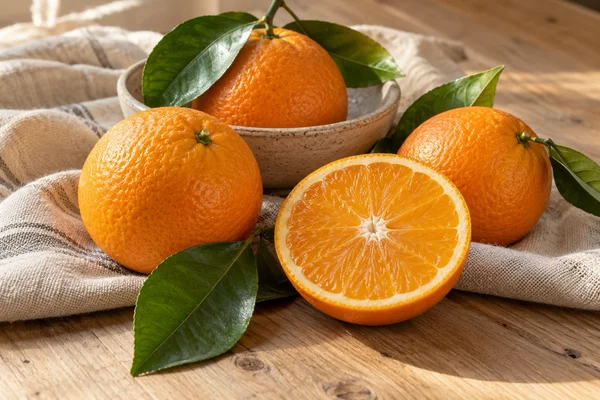
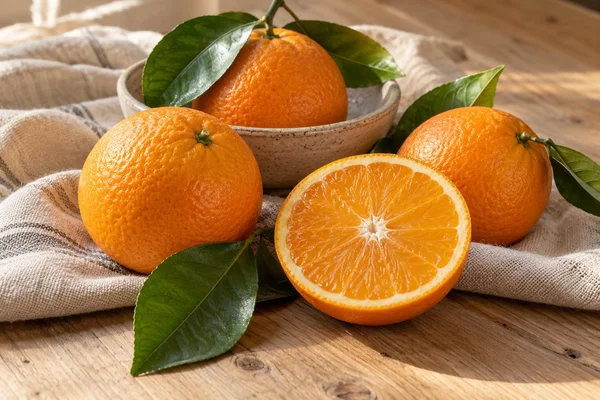
Previews are scaled for display. Download the source and JPG files below to compare full-size quality.
| File / settings | Dimensions | Size |
|---|---|---|
| HEIC source download | 1536 × 1024 px | 248.6 KB |
| Download JPG 90% | 1536 × 1024 px | 362.2 KB+46% |
| Download JPG 80% | 1536 × 1024 px | 245.2 KB-1% |

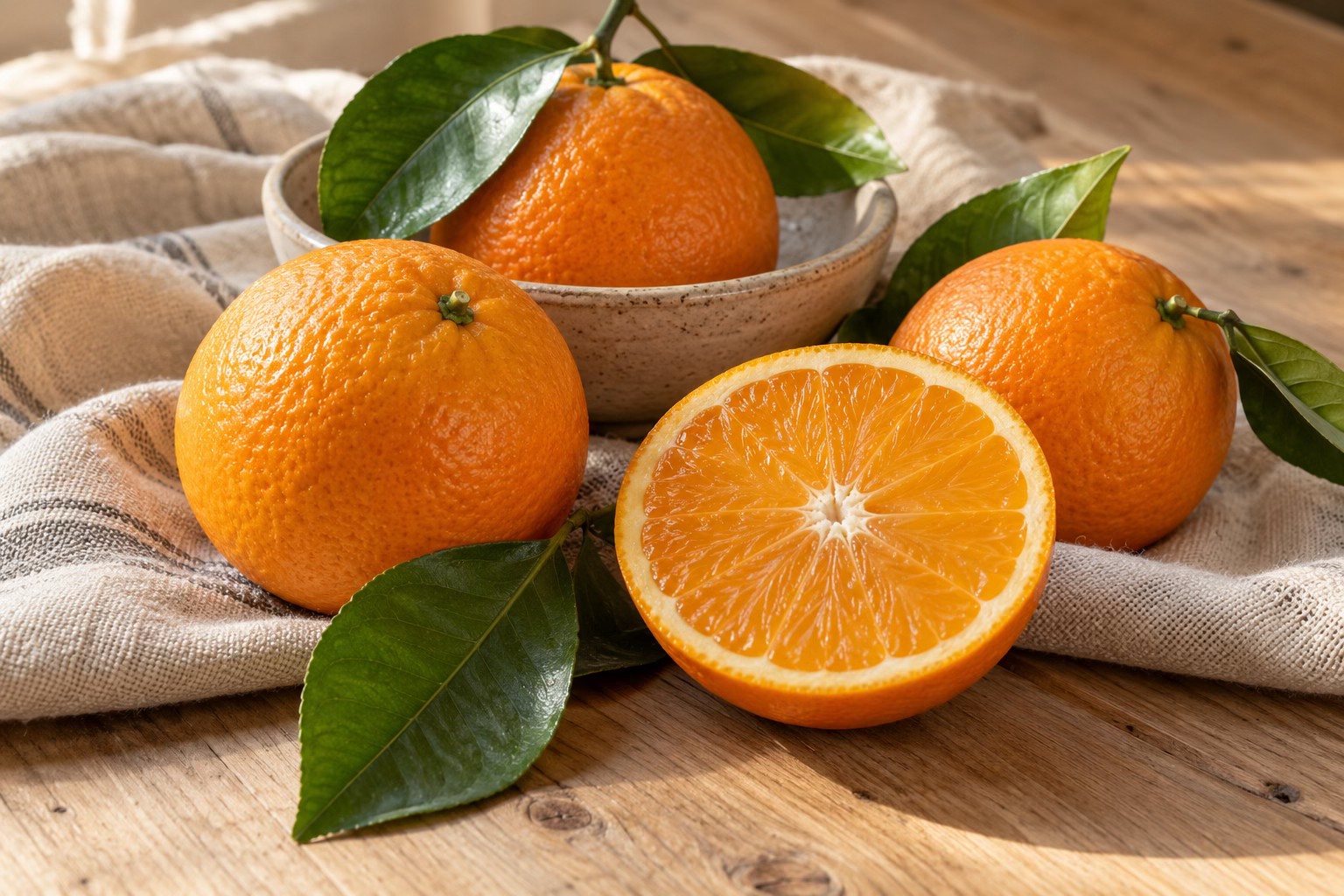
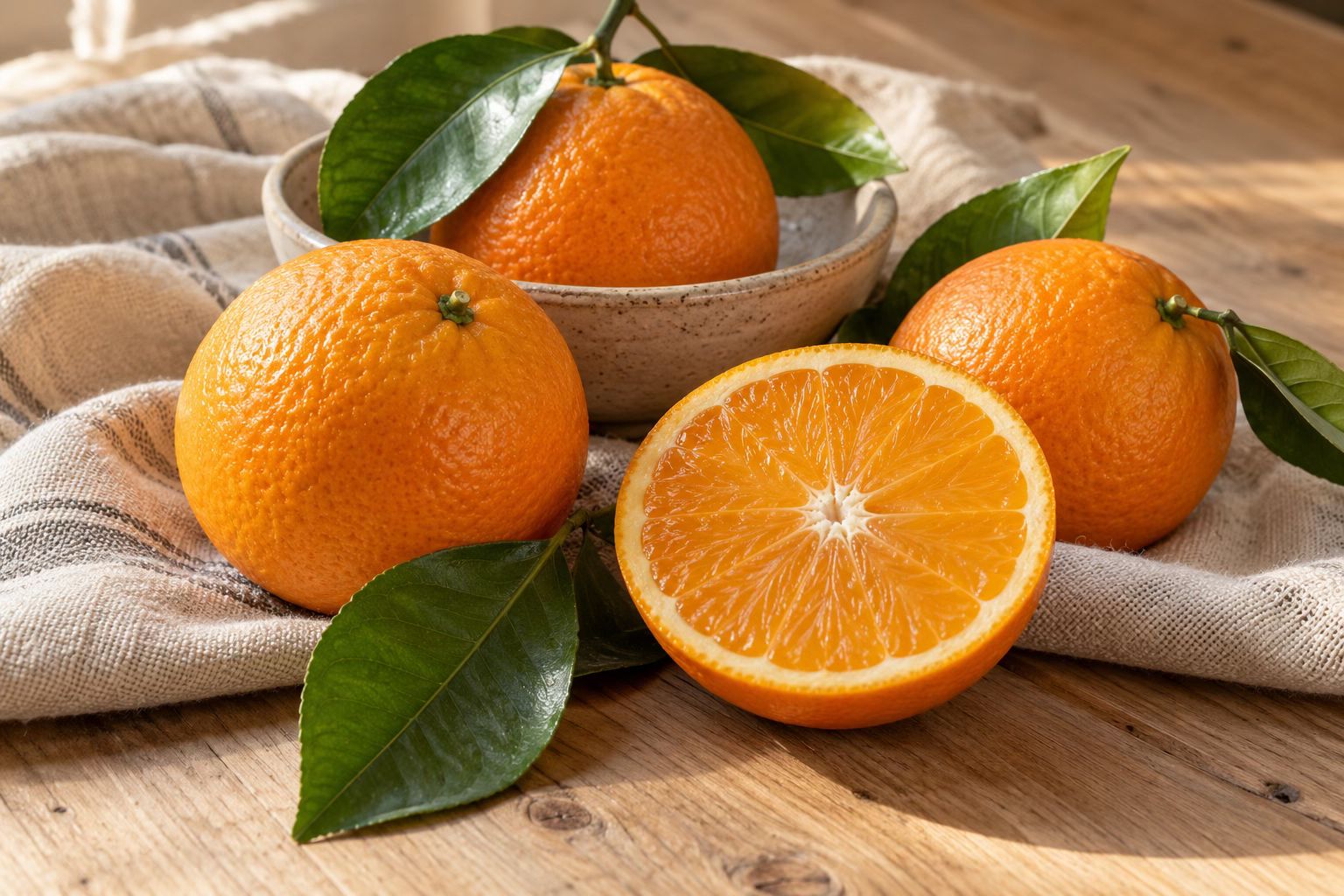
This sample got larger at quality 90%. JPG conversion can improve compatibility without reducing file size. Lowering quality can also change fine detail.
Sample sources and measurement conditions
The orange image is an AI-generated demonstration sample, not an iPhone camera capture. We prepared HEIC and WebP inputs from it, then converted them with PicConv.
Checked on October 21, 2026 in a Chromium-based browser on macOS. 1 KB = 1,024 bytes; displayed values are rounded. File size and color can vary with image content, settings and browser.
Convert by image format
Choose a conversion to start with the right output format.
WebP to JPG
Save WebP pictures as familiar JPG files.
PNG to JPG
Turn PNG images into easy-to-share JPGs.
WebP to PNG
Keep transparent backgrounds in a PNG copy.
HEIC to PNG
Save iPhone photos as PNG images.
JPG to PNG
Make PNG copies of your JPG images.
HEIC to WebP
Turn iPhone photos into WebP images for the web.
JPG to WebP
Prepare your JPG photos for WebP workflows.
PNG to WebP
Save PNG graphics as WebP, keeping transparency.
Three steps. One ready-to-share photo.
- 01
Choose HEIC photos
Select up to 10 HEIC or HEIF files. JPG copies provided by the iPhone photo library also work.
- 02
Check your JPG settings
JPG is already selected. Keep original dimensions or reduce the size, then choose Convert.
- 03
Download your JPGs
Save each converted photo, or download successful results together as a ZIP.
Photo conversion guides
View all guidesHow to convert HEIC to JPG on iPhone
Convert an iPhone HEIC photo to JPG, handle photos already delivered as JPEG, and find the downloaded file. Includes the original HEIC route through Files.
Read the guide WindowsOpen HEIC photos on Windows or convert them to JPG
Need to open a HEIC photo on Windows? Check Microsoft’s viewing options or make a JPG in your browser with PicConv, without uploading your photo.
Read the guide Batch & ZIPBatch convert HEIC to JPG and download a ZIP
Convert up to 10 HEIC, HEIF, or JPG photos together. Learn the file limits, how to download a ZIP, and what happens when a photo fails or you cancel.
Read the guideGood to know
Which image formats can I convert?
Open HEIC, HEIF, JPG, PNG and WebP images and save as JPG or PNG. WebP output is available in supported browsers. HEIC output and animated PNG or WebP inputs are not supported.
What are HEIC and HEIF?
HEIF is an image container format; HEIC commonly stores photos using HEVC compression. Many iPhones use these formats. Converting to JPG helps when a website or app does not accept them.
Can I select photos directly from my iPhone library?
Yes. iOS may provide a JPG copy instead of the original HEIC. PicConv accepts that copy too. To select an original HEIC file, save it to the Files app and choose Browse in the photo picker.
Will the JPG have exactly the same quality?
JPG uses lossy compression. The default keeps the original dimensions at 90% quality; you can adjust quality or reduce dimensions. HDR and wide-gamut colors may look different. Keep your original HEIC if you need its full information.
Does it keep Live Photo motion or capture information?
The result is a still image. For a file containing multiple images, PicConv saves the primary photo. Original GPS, camera and capture-date metadata are not copied.
Are my HEIC photos uploaded?
No. Conversion happens in your browser. You can download up to 10 photos individually or as a ZIP; the combined result limit is 50 MB.